Docker container updates with Watchtower

Watchtower is a tool for automatically updating Docker containers based on changes in the Docker Hub registry. It allows you to automatically update your containers in the background, eliminating the need to manually update each container manually.
Watchtower Installation
There are a few simple steps to install Watchtower. Install Docker on your server. You can use the official Docker documentation to install it on your operating system. In case you're on Arch Linux, follow the post below to set it up.
 Nana Oware
Install Watchtower by running the following command:
docker run -d --name watchtower -v /var/run/docker.sock:/var/run/docker.sock containrrr/watchtower
This command will download the Watchtower image from the Docker Hub and run it in the background. It will keep track of changes to your Docker Hub registry and update your containers automatically. If you simply want your micro-services to be updated, this should just do the work.
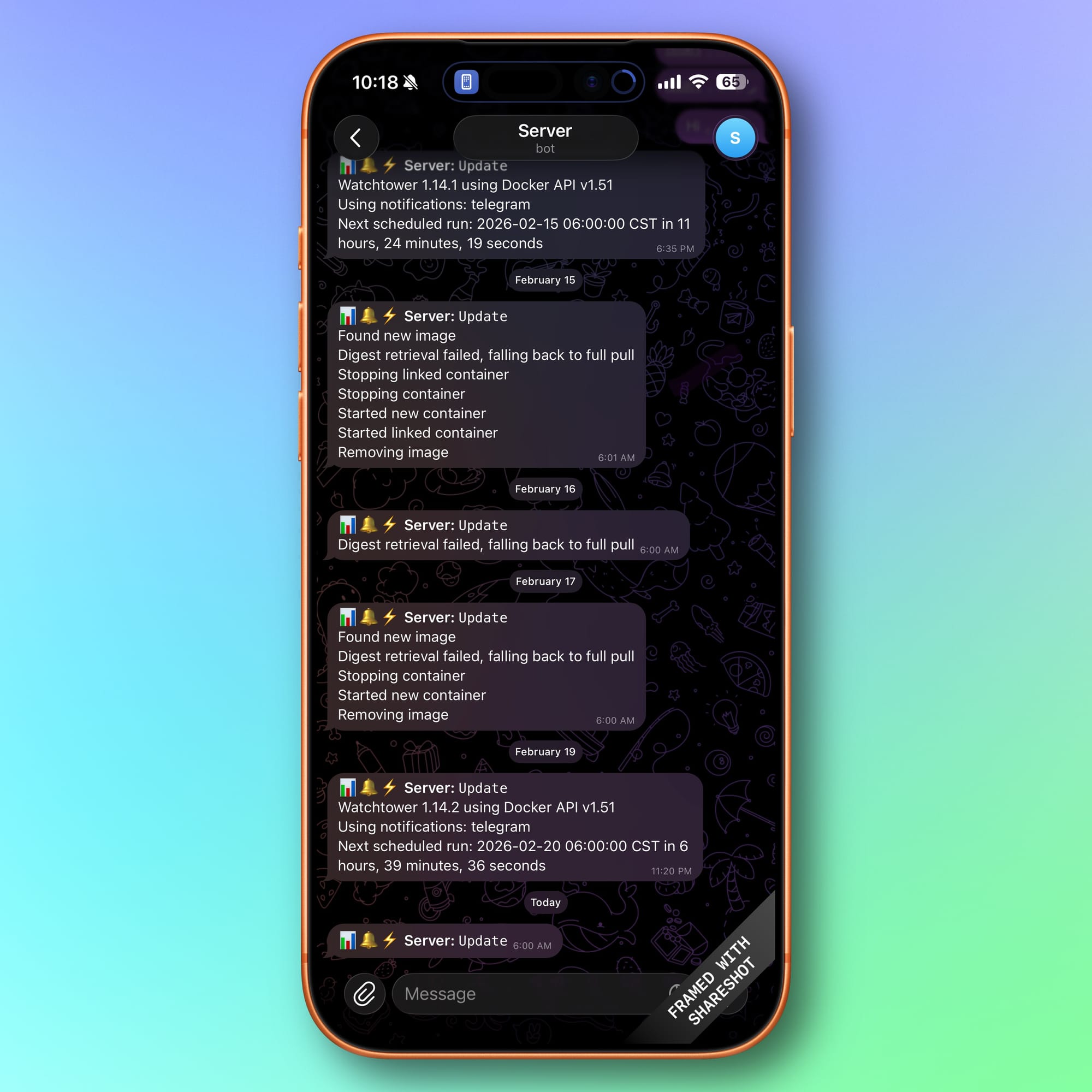
Notification from Watchtower on Telegram
However, if you want to get regular updates on your micro-services whenever they're being updated, continue with this step. Watchtower allows you to send notifications to messengers when the container is updated. In this article we will figure out how to set up a notification for the Telegram messenger.
To receive notifications in Telegram from Watchtower, we will need to create a bot and get the ChatID of the channel to send notifications. Detailed information about creating a bot is available in the detailed instructions from Telegram.
Now configure Watchtower to send notifications to your Telegram feed. To do this let’s add environment variables to the Watchtower setup command, which are responsible for configuring notifications:
SMTP_PORT=587
[email protected]
SMTP_PASS=your_secured_pass
[email protected]
[email protected]
SMTP_SERVER=smtp.google.com
API_TOKEN=My-HTTP-API-Token
DEFAULT_NETWORK="traefik"
#TZ="Europe/Madrid"
TELEGRAM_AUTH_TOKEN="superBotSecret"
TELEGRAM_CHAT_ID="myChatID"
Simply replace the TELEGRAM_AUTH_TOKEN with your bot token as well as TELEGRAM_CHAT_ID with the bot id.
Lastly, copy this code snippet into your docker-compose.yaml file as:
services:
  watchtower:
    container_name: watchtower
    hostname: watchtower
    environment:
      #- WATCHTOWER_NOTIFICATION_EMAIL_SERVER_PORT=${SMTP_PORT:-587}
      #- WATCHTOWER_NOTIFICATION_EMAIL_SERVER_USER=${SMTP_USER:-smtpuser}
      #- WATCHTOWER_NOTIFICATION_EMAIL_SERVER_PASSWORD=${SMTP_PASS:-smtppass}
      #- WATCHTOWER_NOTIFICATION_EMAIL_FROM=${SMTP_MAIL_FROM:[email protected]}
      #- WATCHTOWER_NOTIFICATION_EMAIL_TO=${SMTP_MAIL_TO:[email protected]}
      #- WATCHTOWER_NOTIFICATION_EMAIL_SERVER=${SMTP_SERVER:-smtp.google.com}
      - WATCHTOWER_HTTP_API_TOKEN=${API_TOKEN:-SecureApiToken}
      #- WATCHTOWER_NOTIFICATIONS=email
      - WATCHTOWER_DEBUG=true
      #- DOCKER_HOST=tcp://socketproxy:2375
      - WATCH_TOWER_HTTP_API_METRICS=true
      #- WATCH_TOWER_HTTP_API_TOKEN="mytoken"
      #new- TZ=$TZ
      - WATCHTOWER_MONITOR_ONLY=false
      - WATCHTOWER_CLEANUP=true
      - WATCHTOWER_NOTIFICATIONS=shoutrrr
      - WATCHTOWER_NOTIFICATION_URL=telegram://$TELEGRAM_AUTH_TOKEN@telegram?channels=$TELEGRAM_CHAT_ID&parseMode=HTML
      - WATCHTOWER_NOTIFICATION_TEMPLATE=📊🔔⚡️ <b>Server:</b> <code>Update</code>{{println}}{{range .}}{{.Message}}{{println}}{{end}}
      - WATCHTOWER_NOTIFICATION_SKIP_TITLE=true
      - WATCHTOWER_SCHEDULE=0 0 6 * * * # requires a go cron syntax of 6 space-separated fields; see https://containrrr.dev/watchtower/arguments/#scheduling
      #- WATCHTOWER_CLEANUP=true # remove unused images afterwards
    image: nickfedor/watchtower
    networks:
      - traefik
    labels:
      - "traefik.enable=true"
      - "traefik.docker.network=traefik"
      - "traefik.http.routers.watchtower-http.entrypoints=http"
      - "traefik.http.routers.watchtower-http.middlewares=redir-https"
      - "traefik.http.routers.watchtower-http.rule=Host(`watchtower.linuxpad.blog`)"
      - "traefik.http.routers.watchtower-http.service=noop@internal"
      - "traefik.http.routers.watchtower-https.entrypoints=https"
      - "traefik.http.routers.watchtower-https.tls=true"
      - "traefik.http.routers.watchtower-https.middlewares=gzip"
      - "traefik.http.routers.watchtower-https.rule=Host(`watchtower.linuxpad.blog`)"
      - "traefik.http.services.watchtower-backend.loadbalancer.server.scheme=http"
      - "traefik.http.services.watchtower-backend.loadbalancer.server.port=9080"
      - "traefik.http.routers.watchtower-https.middlewares=authelia@docker"


    restart: always
    #network_mode: "host"
    volumes:
      - /etc/localtime:/etc/localtime:ro
      - /var/run/docker.sock:/var/run/docker.sock:ro # Disable for socket proxy
    ports:
      - 9080:8080
    working_dir: /

networks:
  traefik:
    external: true
In conclusion, Watchtower is a simple and convenient tool for automatically updating your Docker containers. It avoids the need to manually update each container and keeps your infrastructure up to date. Installing and using Watchtower takes only a few minutes and makes your Docker experience much easier.